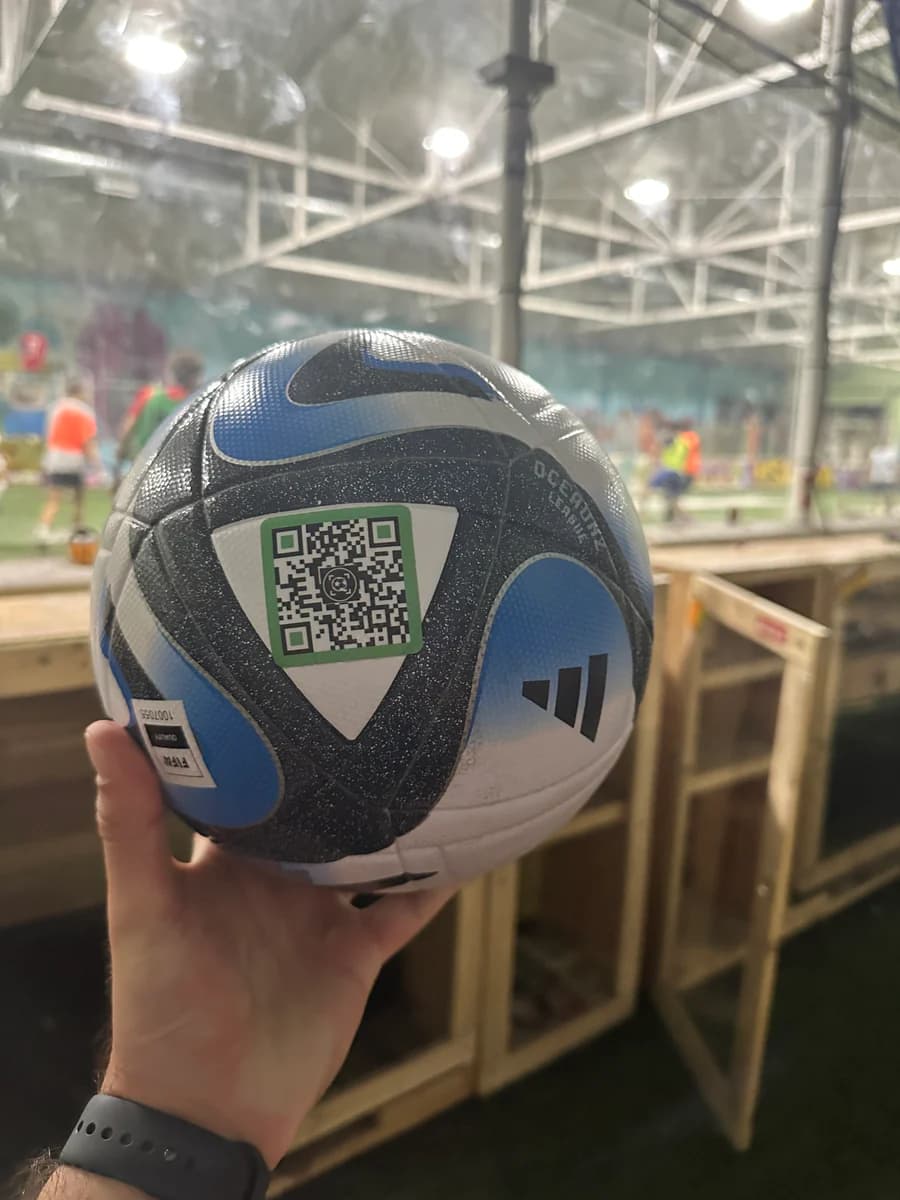
Set up one tag page completely before you try the stats or team features.
Getting started
How to use SoccQR
SoccQR works best when you think of it as one connected system: protect the ball, set up the owner profile, log real training, and connect players to teams when accountability matters.
Once a player has a profile, tag, and at least one saved session, the rest of the app becomes much more useful.
Step 1: Set up the tag and return page
Start with the part that solves the original problem: helping a lost ball make it back to the owner quickly.
- Apply the tag to a clean, dry spot on the ball.
- Claim the tag to your account.
- Add a clear title, custom message, and ball photo.
- Choose whether call, text, or email options should appear to the finder.
- Open the public page yourself and make sure it looks right on mobile.
A visual example of this part of SoccQR is coming soon.
Step 2: Check the live public experience
SoccQR is strongest when the owner can see both sides: the management view and the live version a finder sees.
A visual example of this part of SoccQR is coming soon.
- Open the tag without owner mode enabled.
- Confirm the page reads clearly for a stranger who just found the ball.
- Use the Manage this tag link when you want to jump back into the owner controls.
Step 3: Build the player profile and stats habit
Once the tag is live, the player side becomes the performance layer of the product.
Keep the account details current so tags and team invites stay connected to the right player identity.
Log training sessions, matches, and other player activities so the dashboard has real data to work from.
Use the session manager to review recent activity, edit saved entries, and keep a clean season history.
Step 4: Join a team only when it matters
Team tasks are intentionally hidden until a player is actually on a team. That keeps the player experience cleaner.
- Enter a coach invite code from the profile page, or accept a direct email invite.
- Players must accept before they appear as active on the roster.
- Once a team is joined, assignments and team accountability views appear.
- If a player leaves a team, those team-driven task surfaces disappear again.
A visual example of this part of SoccQR is coming soon.
Step 5: Use Coach Mode for accountability
Coach Mode is lightweight on purpose. It is there to answer a simple question: who is actually training outside of practice?
A visual example of this part of SoccQR is coming soon.
- Create a team and share the invite link or invite by email.
- Assign weekly work to the whole team or a single player.
- Review sessions, completion rates, streaks, and alerts on the roster page.
- Remove players when needed and require a new invite if they need to come back.
Useful next pages
If you want the full product walkthrough, use the guide below. If you just want quick answers, the pages here will get you moving.