Loading your guide…

Scanning help
First separate two problems: no link appearing in the camera, or a link that appears but will not open. Improve the view of the code for the first; check the connection and destination for the second.
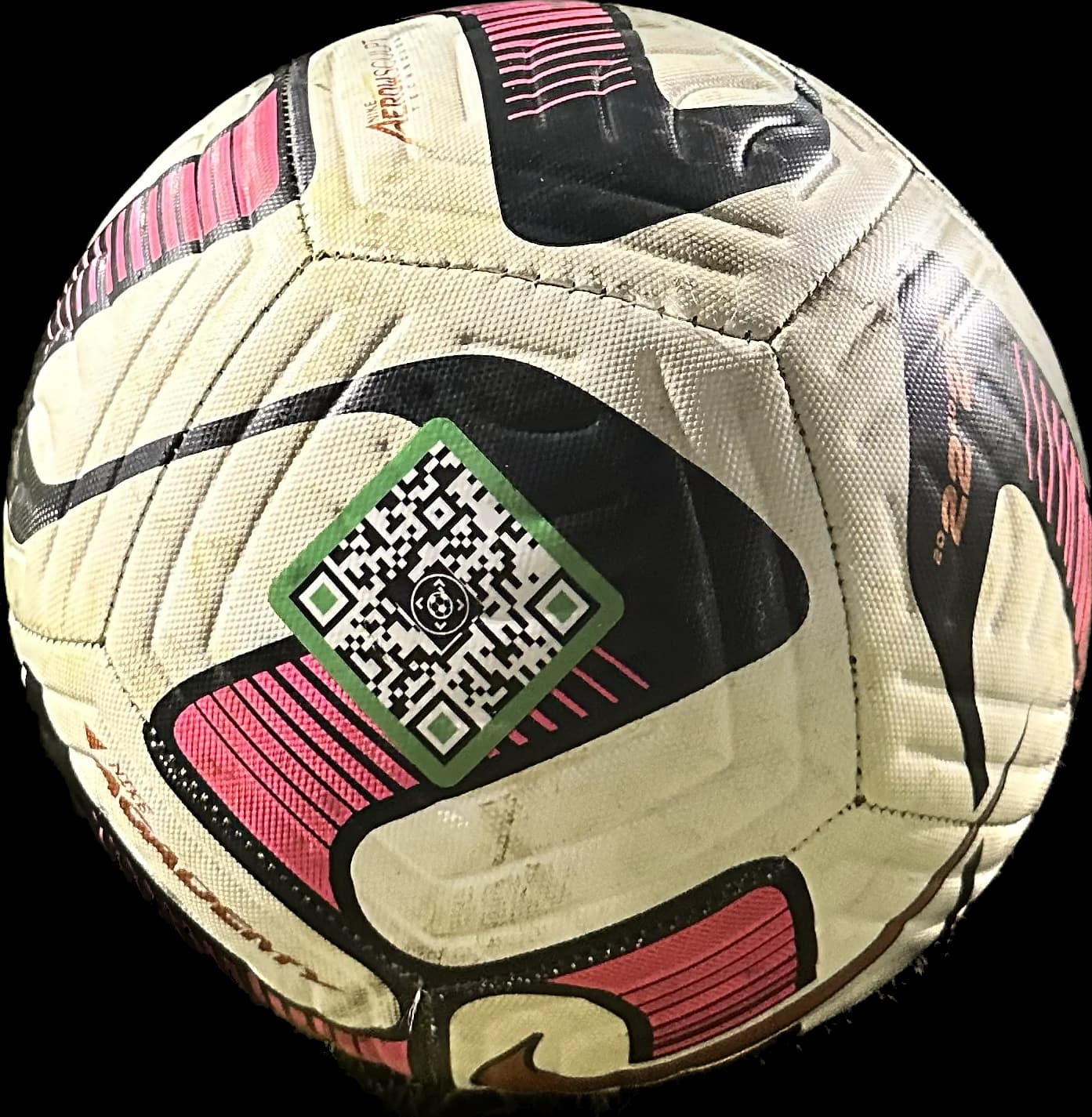
| What happens | What to check | Next step |
|---|---|---|
| Camera shows no link | Whole pattern, focus, glare, dirt, and QR scanning support | Adjust the view and try a compatible scanner. |
| Link appears; page does not load | Internet connection and the displayed address | Try the browser again when connected. |
| Page says unclaimed or disabled | The tag's setup or status | A finder should use another label or venue staff. |
| Page opens; no preferred contact button | The owner's selected contact choices | Use an available method or the found-alert option. |
Turn the ball so the label faces the phone. Gently clear surface dirt, keep the full pattern inside the frame, and move out of harsh glare. Hold still long enough for the camera to focus; move a little closer or farther away if the pattern is blurred.
Check the camera lens too. If another phone reads the same label, the problem may be the original camera's settings or scanning support. If several compatible phones fail on a clean, well-lit label, inspect it for damage or an obscured pattern.
On iPhone, Apple describes opening Camera in Photo mode, framing the QR code, and tapping the displayed link. The Scan Code control in Control Center is another option. Follow Apple's instructions for your installed iOS version.
On a Google Pixel, Google describes using Camera with Camera scan suggestions enabled, or Scan QR code in Quick Settings. Android phones from other manufacturers can use different names and controls; check that phone's camera guidance rather than assuming the Pixel menus apply.
No SoccQR scanner app is required. A compatible reader opens the tag's web address in a browser. You do not need a special football scanner or a ball-recognition app to read the printed code.
A printed code can be read without a connection, but its online return page needs internet access. If the page will not load, check the connection and the address shown. For a SoccQR return page, the expected site is soccqr.com.
If the page opens as unclaimed or disabled, repeated scanning will not change that status. Owners should check their own account setup. Finders should not claim a stranger's tag; use other markings or leave the ball with the venue's lost and found.
Call, text, and email choices depend on the owner. A found alert is a separate action and can be sent without a note or location. If there is no way to arrange a direct reply, a clear note about where you left the ball can still help.
After setup, test the actual tag while signed out and confirm the public message and contact options. Check again after changing a number or replacing a ball photo. Inspect the physical label after use; an account update cannot repair a torn pattern.
If you need help, describe what happens: no camera link, a page error, or an account/status question. That distinction is more useful than ‘the scanner is broken.’ Share account details through support rather than posting them publicly.
These guides do not provide an upload-and-scan service. Use a compatible camera or built-in QR reader on the actual tag, then follow the destination's instructions.
No. SoccQR opens ball return pages. For a game, ticket, promotion, or redemption code, follow the instructions from the organization that issued it.
Location permission is not required to read a SoccQR code or view its return page. It is only relevant if you choose to add your current location to a found report.
Phone-specific steps follow Apple and Google support guidance. Menu names can vary by device and software version; SoccQR return-page behavior is described separately.
A flexible tag. An editable return page. A clear next step for the person who finds your ball.
U.S. shipping included. Activation included. No monthly fee. Tags only; ball not included.